
.jpg)
What the camera driver provides
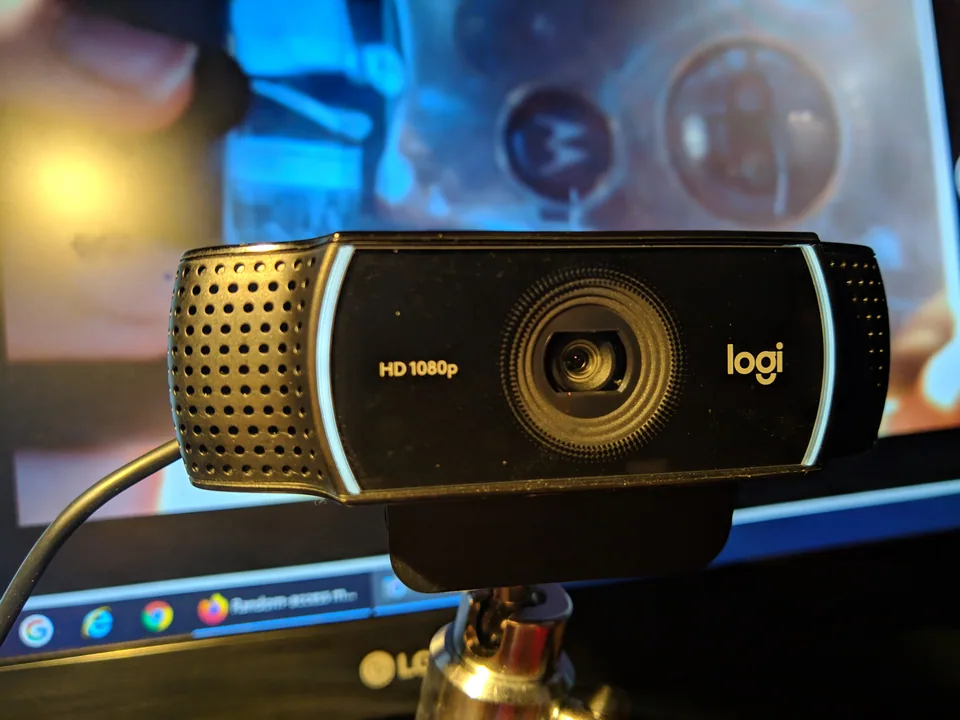
A webcam captures video for applications through Windows camera interfaces. Many USB webcams implement USB Video Class (UVC) and work with the Windows-provided USB video driver. Integrated laptop cameras may use a different platform design or require supporting components supplied by the laptop maker. Being detected is only one stage: an application still needs permission and the correct camera selected.
An external webcam may include a separate microphone. Audio and video can therefore fail independently. A camera preview that works in one app but not another suggests an app configuration or access issue rather than immediate proof of a broken device driver.
Find the device and the privacy controls
Look in Device Manager under Cameras or Imaging devices and record the camera name, device status, and hardware IDs if a warning appears. For a USB model, note the exact product and test a direct port rather than a hub. For a laptop, use the complete computer model because the camera assembly and its privacy controls can vary by configuration.
Check for a physical shutter, lens cover, camera switch, or keyboard privacy key before changing software. Then open Settings → Privacy & security → Camera to confirm camera access and the relevant app permissions. Test Windows Camera or another trusted app to compare behavior.
UVC support and OEM camera components
A UVC-compatible USB camera commonly uses Microsoft's inbox class driver without a separately downloaded installer. Windows Update can supply applicable device packages; model-specific accessories or integrated cameras may need the exact manufacturer's supported software for particular features. Do not assume a camera utility, firmware update, and core Windows driver are interchangeable.
For a built-in laptop camera, check its exact-model support page if Device Manager shows an error or required camera features are missing. For a retail webcam, use its manufacturer's documentation. Avoid arbitrary webcam driver bundles that do not name the device and supported operating system.
What an installer cannot override
A driver cannot open a closed physical shutter, grant an app permission denied in Windows, repair a broken USB cable, or choose the correct camera in a video-call app. Some laptops deliberately disconnect the camera electrically when a privacy switch is off; no software install will override that switch. Compare detection while toggling only documented controls.
A black image with a visible camera device is different from a device missing entirely. Check lighting, lens obstruction, and whether another app has the camera open before reinstalling a working driver. On managed devices, camera access may also be restricted by policy.
A privacy-first diagnostic order
Confirm the shutter and switch, Windows camera permissions, app selection, and a test preview. For an external camera, try another known-good USB port without a hub and inspect the cable. If the device is missing or reports an error, record its ID and compare Windows Update with the exact model's support documentation.
Change only a supported camera component, then retest the same app and a second app. If the camera works elsewhere but not in one meeting program, investigate that program's permission and device selection instead of repeatedly replacing the driver.