
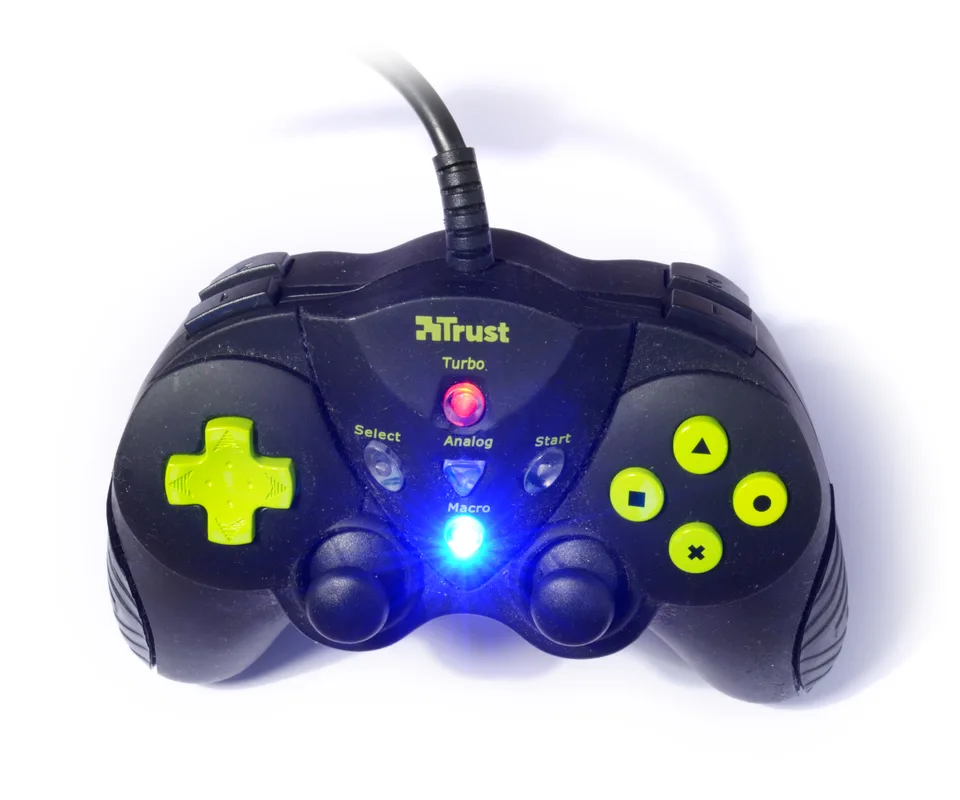

Detection and game support are different
A controller first has to communicate with Windows over USB, Bluetooth, or a manufacturer's receiver. Windows can then expose buttons and axes to applications. The way a game reads that input matters: many PC games expect XInput-style controls, while others accept DirectInput or their own mappings. A controller that responds in Windows may still need in-game configuration or may not match a game's expected button layout.
Some controllers present different modes depending on a hardware switch or connection type. Wired and wireless operation can also expose different device entries, so successful detection on one path does not prove the other path works.
Check the connection and reported inputs
In Device Manager, a controller may appear under Human Interface Devices, Xbox peripherals, Bluetooth, or a maker-specific category. Check status and Hardware Ids instead of assuming every generic HID game device is wrong. Windows' game controller settings can show whether a recognized controller reports button presses and stick movement. If there is no response there, investigate the connection; if inputs respond there but fail in one game, inspect that game's support and control settings.
Windows input support and maker software
Windows provides input interfaces for many controllers, while some products rely on manufacturer-provided software or firmware instructions for extra features. Check the exact model and connection mode on its official support page before changing anything. A manufacturer's remapping application is not necessarily required to make standard buttons register, and a general USB driver will not convert an unsupported device into the controller model a game expects.
What drivers cannot make a game do
Installing a driver cannot add controller support to a game that only accepts keyboard and mouse, fix an incompatible mapping built into a game, or make a damaged trigger report correctly. Duplicate inputs can result from a game's overlapping input settings or other remapping software. Wireless dropouts may trace to batteries, distance, interference, or a receiver connection rather than a Windows input component.
Separate a Windows problem from a game problem
Start by checking cable, battery, pairing, or receiver status. Test controls in Windows and then in a second compatible game if available. Read the game's documented controller support, including whether it expects XInput or another interface, before installing translation or remapping software. If Windows never sees the controller or displays an error, capture its hardware ID and status, then consult Windows Update and the manufacturer's model-specific guidance. Avoid installing several overlapping remappers at once; they can obscure which device a game receives.