
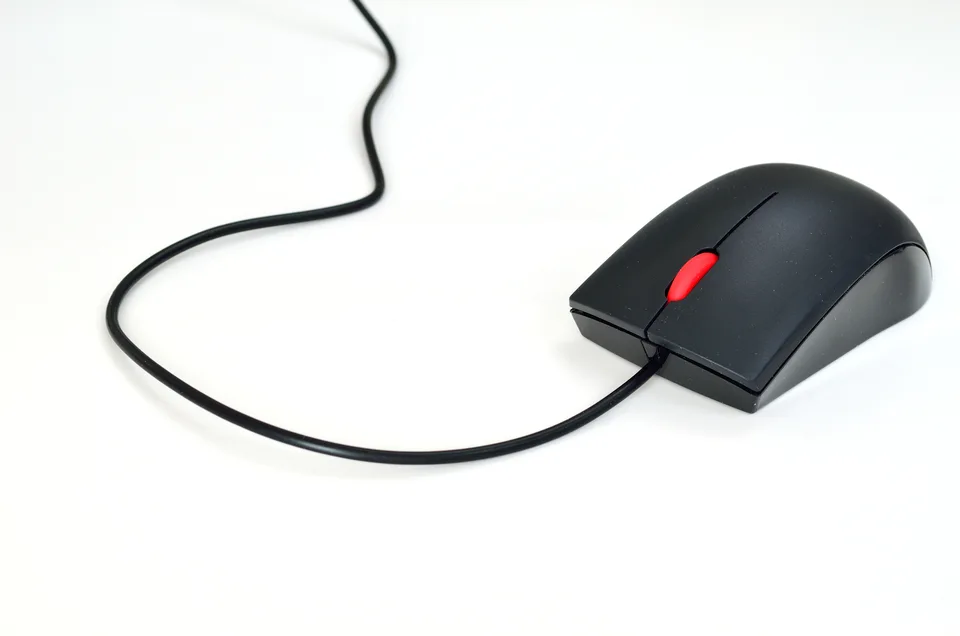

Why most mice work without an installer
A conventional USB or Bluetooth mouse reports pointer movement and button presses through the human interface device (HID) model. Windows has built-in support for basic HID input, so moving the pointer and clicking usually require no brand-specific installation. Manufacturer utilities may add adjustable button assignments, lighting, sensitivity presets, or profiles; those extras are distinct from basic movement.
A wireless mouse may communicate over Bluetooth or a dedicated USB receiver. The two are not automatically interchangeable. A receiver that belongs to one product family may not pair with another mouse, even when both products use the same brand.
Trace the pointer's connection type
In Device Manager, look under Mice and other pointing devices and Human Interface Devices; a generic HID-compliant name does not by itself indicate a fault. Record status and Hardware Ids if an entry has an error. For a receiver, also check whether Windows detects it as a USB device. For Bluetooth, verify that the mouse is paired and connected to the intended PC. A laptop touchpad can appear in related input categories, so do not mistake its entry for the external mouse.
Built-in input and optional OEM features
Windows' built-in HID drivers cover standard pointer behavior. Use manufacturer software only if the model supports a feature you actually need, and obtain it from that manufacturer's official product support page. An OEM laptop package intended for its integrated touchpad is not a substitute for the external mouse's driver. If basic movement already works but a programmable side button does not, inspect utility settings and app-specific bindings before replacing the Windows HID driver.
What a driver cannot fix
No software can recharge a flat battery, remove dirt from an optical sensor, repair a damaged switch, or make a Bluetooth mouse operate through an unrelated 2.4 GHz receiver. Cursor stutter may also reflect a reflective tracking surface, radio interference, a crowded hub, or a weak wireless connection. If clicks fail only in one application, that app's bindings or focus state may be the cause.
Low-risk checks for an unreliable mouse
Use a known-good surface, check battery or charging status, and try another port for a wired mouse or receiver. Test the device on a second computer if available; on the original PC, compare another known-good mouse. If Bluetooth, verify the pairing state rather than assuming a missing driver. Record any Device Manager error before consulting Windows Update or the exact model's support instructions. Keep a working keyboard available while diagnosing pointer input so you can navigate without the mouse.