
.jpg)
Which device makes the sound?
A sound card can be a PCIe add-in board, an external USB interface, or, in casual usage, an integrated motherboard audio codec. Each creates playback or recording paths that Windows presents as endpoints. The card's controller and the selected Speakers or Microphone endpoint are related but not identical; a healthy device driver does not guarantee that an app is using the right endpoint.
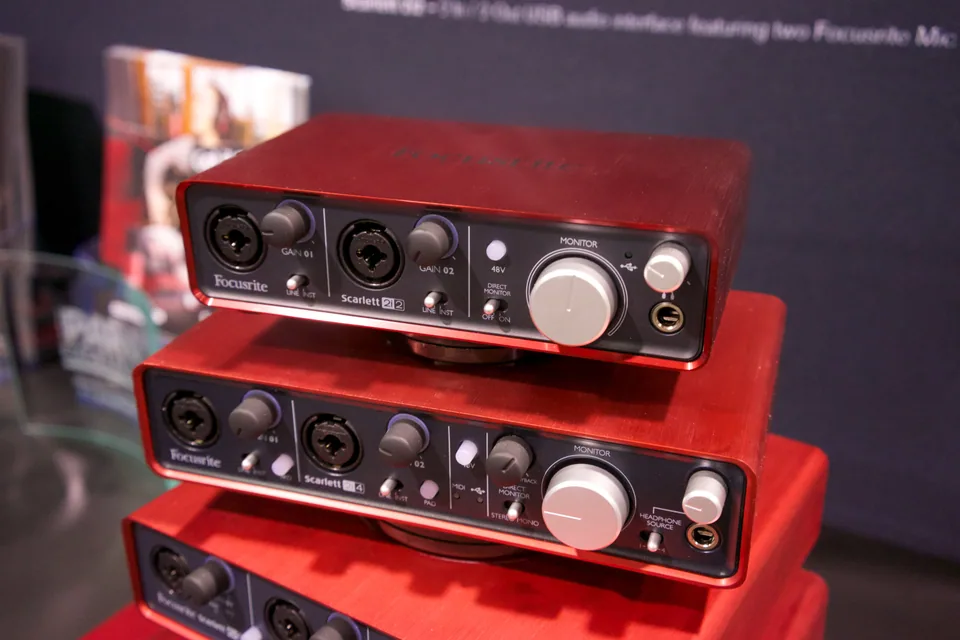
Studio interfaces may expose multiple inputs, sample rates, or low-latency software features. A basic headset may use standard USB audio without any custom package. Identify the hardware and the specific missing function before deciding whether additional software matters.
Inspect hardware, endpoints, and connections
In Device Manager check Sound, video and game controllers for the actual card or interface, then compare Sound settings for the selected playback and input devices. Record the exact model, driver provider, hardware IDs if needed, and error status. For a PCIe card, check that the board is seated and its required connections are present with the PC safely off.
Test a known-good pair of speakers or headphones at low volume, and make a short recording if capture is the failing feature. A front-panel jack fault can coexist with working rear-panel output. A USB interface that changes behavior across ports may have a connection or power issue.
Windows baseline and maker features
Windows provides standard audio components and can install compatible device software through Windows Update. For onboard audio, the exact laptop or motherboard maker may provide validated extensions, jack detection, or microphone tuning. For a retail PCIe card or USB recording interface, use its exact product maker's instructions for any required control panel, firmware, or low-latency driver.
A generic codec package is not automatically appropriate for a branded laptop with custom speaker processing. Similarly, an internal audio package is not the right source for HDMI sound sent by a graphics adapter. Review supported device IDs and Windows versions before replacing a working setup.
A driver cannot fix every silent endpoint
No driver can reconnect a loose cable, unmute an application, correct a receiver input, repair a blown speaker, or grant an app microphone privacy permission. Sample-rate or exclusive-mode conflicts and app routing can also produce silence while Device Manager reports a healthy card. Determine whether playback, recording, or both fail before changing software.
If sound disappears only on an HDMI monitor, investigate display audio rather than the onboard card. If an external interface cannot power up on any known-good port, hardware and power checks belong ahead of repeated driver installation.
Change only the implicated part
Check Windows Sound output and input selection, mute states, app routing, cables, and a second endpoint. If Device Manager reports a specific card error or a recent update clearly caused the failure, compare Windows Update with the exact-device support page and retain a rollback option. Install one matched package, then retest both playback and recording.
When an external interface has special controls, follow its documented setup order rather than guessing from a chipset name. Record the result so the next step targets the unresolved part of the signal path.