
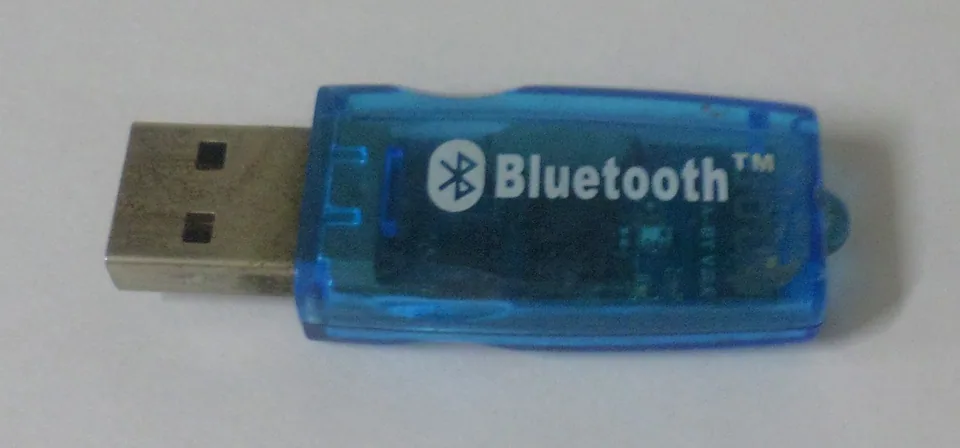

What the Bluetooth driver actually controls
A Bluetooth adapter is a radio that lets Windows discover and communicate with nearby accessories. Its driver connects the radio hardware to the Windows Bluetooth stack. Pairing is a separate process: it establishes a trusted relationship with a particular headset, keyboard, phone, or controller. A working radio driver does not automatically make an accessory discoverable or paired.
After pairing, the accessory's supported profiles determine what it can do. A headset may expose both stereo playback and a call-oriented microphone mode; a keyboard uses an input profile. A missing feature can therefore be a profile, accessory, or app issue even while the radio appears healthy.
Identify the radio before choosing a package
In Device Manager, expand Bluetooth and note the adapter's name, Driver Provider, and status. On its Properties > Details tab, Hardware Ids can distinguish a USB-connected radio from another internal component. Many laptops put Wi-Fi and Bluetooth on the same card, but Windows treats their functions separately. A working Wi-Fi connection does not prove the Bluetooth side is working.
If the Bluetooth category is missing, check whether the radio appears under Other devices or USB controllers, whether airplane mode is active, and whether the computer's hardware wireless switch or firmware setting has disabled it. Record the exact PC or adapter model before comparing packages.
Built-in support and manufacturer packages
Windows provides the Bluetooth stack and can supply a suitable radio driver through Windows Update. A laptop maker or adapter manufacturer may publish a package for its particular radio and Windows version, sometimes alongside platform or power-management components. Prefer the PC maker's model-specific guidance for an integrated adapter; for an external dongle, check the dongle maker's documented support.
A package is relevant only if it supports the identified device and operating system. Do not replace a working adapter driver just because another package has a higher-looking version number.
Problems a radio driver will not solve
A driver cannot place an accessory into pairing mode, recharge its battery, remove an old pairing on the accessory, or add a Bluetooth capability that either side lacks. Distance, interference, and a device already connected to another host can disrupt discovery. Audio quality and microphone behavior may also change when an app selects a different headset mode.
Safe checks before changing drivers
Confirm Bluetooth is on in Settings, then put the accessory into its manufacturer's pairing mode and test it close to the PC. Remove a stale pairing from Windows only if you can pair the device again; consult the accessory instructions for resetting its connection list. If every accessory fails and Device Manager reports a radio error, note the code and check Windows Update or the exact model's official support page. Test one change at a time so a pairing failure is not mistaken for an installation problem.