
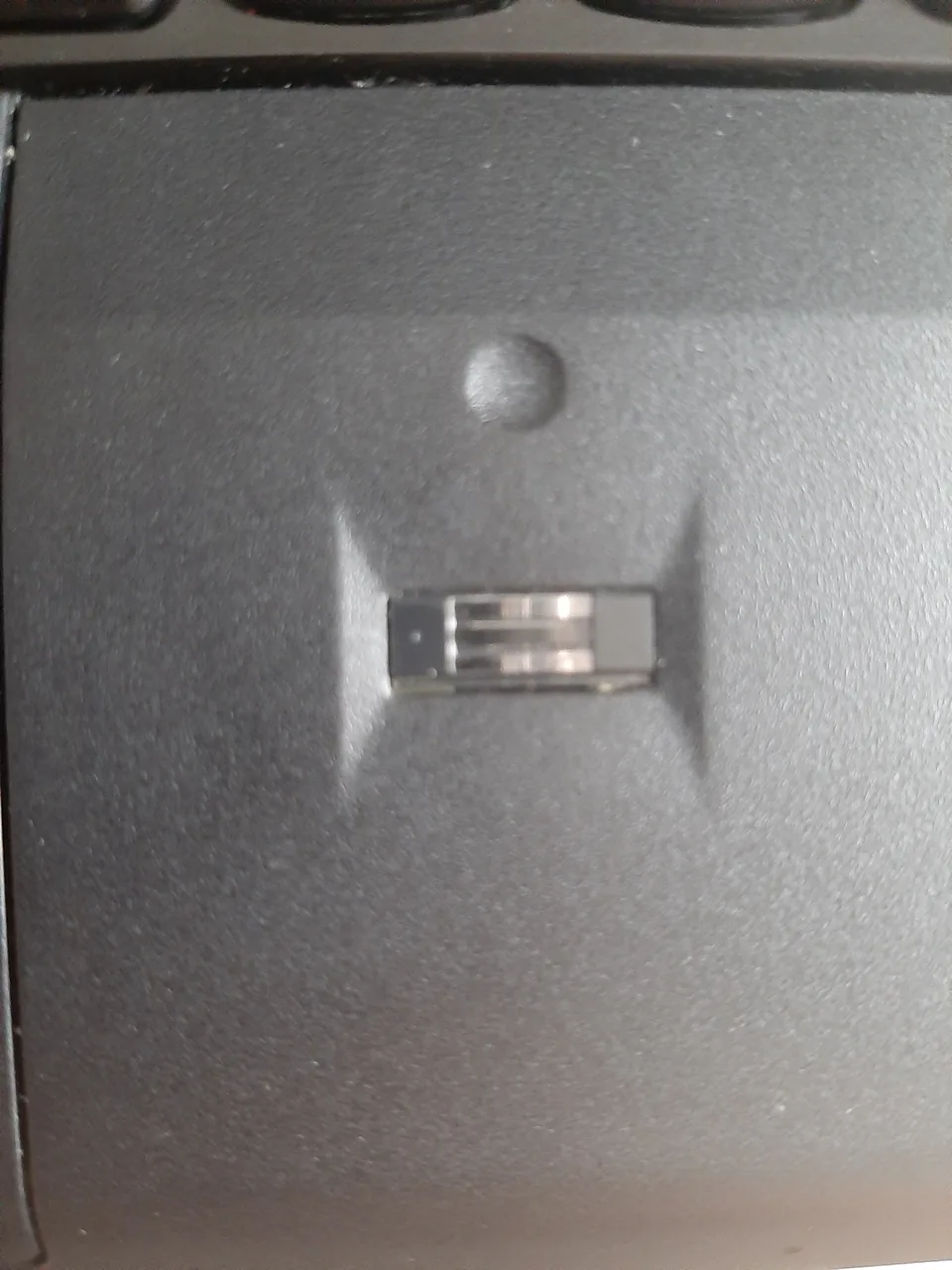

A detected sensor is not an enrolled sign-in
A fingerprint reader captures biometric input for Windows Hello; its driver makes the sensor available to Windows' biometric system. Windows Hello must also be configured for the user account, and enrollment records one or more fingers for recognition. Reader detection, successful enrollment, and sign-in are three separate checkpoints. A working driver alone does not create an enrolled fingerprint or bypass account policy.
Windows Hello uses a PIN as an alternative sign-in method. Keep that fallback available when checking a failing reader; it lets you sign in when a finger is wet, injured, or not recognized, or when the sensor is unavailable.
Check whether Windows sees the sensor
Look in Device Manager under Biometric devices for the reader and record its exact name, Driver Provider, status, and Hardware Ids. On some systems, an unrecognized reader appears in Other devices until its supported package is installed. If no sensor appears, verify the exact laptop or external-reader model actually includes biometric hardware; similarly named configurations can differ. Also check Settings > Accounts > Sign-in options to distinguish “not available” from an enrollment attempt that fails after the device is recognized.
Platform support and model-specific packages
Windows provides the biometric framework, while the reader needs a compatible driver and may have platform dependencies documented by the PC maker. Windows Update can provide applicable components; an OEM support page may offer a sensor package for the exact laptop variant and Windows release. Use the hardware ID and model to avoid installing a driver for a different fingerprint sensor sold in the same product line. On a managed PC, organization policy can also determine whether biometric sign-in is permitted.
Security and hardware limits
A driver cannot repair a scratched sensor, read a finger that has not been enrolled, override an administrator's security policy, or replace a forgotten PIN. Failure after a Windows sign-in setting changes is not automatically a hardware problem. Do not disable biometric protections, weaken sign-in requirements, or remove the PIN to force fingerprint enrollment; those changes do not repair the underlying detection or recognition issue.
Check availability without losing account access
Confirm you can sign in with the existing PIN or another authorized method before making changes. Clean and dry the sensor and finger according to the device maker's directions, then check whether Hello offers fingerprint setup and whether another enrolled finger works. If the device reports an error, record its code and compare the exact model's official package instructions. On a work device, contact IT about policy before editing enrollment or drivers. Preserve your account's fallback sign-in while troubleshooting.