
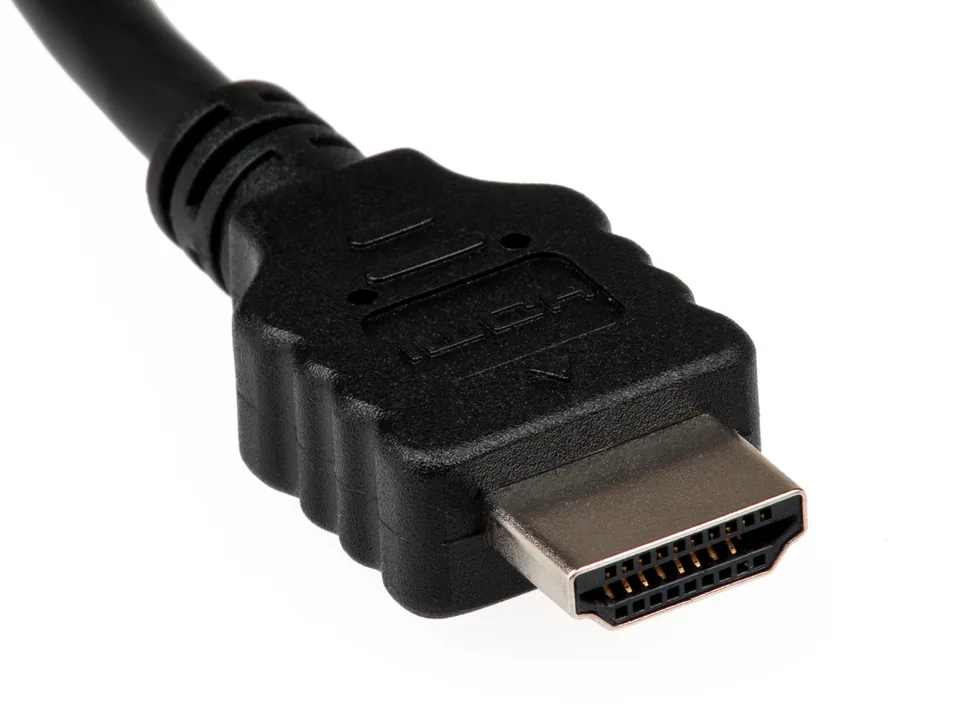


How display audio is routed
HDMI and DisplayPort can carry audio alongside video from a graphics adapter to a television, monitor, or receiver. Windows exposes the connected destination as a playback endpoint when the display path reports that audio is available. This is distinct from the internal speaker codec, even though both endpoints appear in Windows Sound settings.
A monitor without speakers or an audio output may advertise no usable sound destination. A dock, adapter, or receiver adds another stage to the path. Identifying the active output and each connection matters more than looking for a generic “HDMI driver.”
Find the actual playback endpoint
In Settings → System → Sound, select the TV, monitor, or receiver as the output, then test at a safe volume. Check the app's selected output and the destination's mute or speaker setting. In Device Manager, the related display-audio function may appear under Sound, video and game controllers with a graphics-vendor name.
Record the exact GPU or laptop model, graphics driver provider, and connection topology. A display that works directly but loses sound through a dock suggests a dock or negotiation issue. Test another appropriate cable or direct port before replacing packages.
Built-in support and graphics packages
Windows provides audio endpoint and display integration, while a GPU or exact-system graphics package may include the HDMI/DisplayPort audio function. On a laptop, the manufacturer may validate graphics components against hybrid routing and dock behavior. Installing an internal Realtek-style codec package does not ordinarily replace the graphics adapter's display-audio path.
Use Windows Update as a baseline and consult the exact laptop or GPU support notes if the display-audio device has an error or sound failed immediately after a graphics change. A monitor INF may describe display capabilities, but it is not an audio renderer.
What a driver will not fix
A graphics audio driver cannot add speakers to a silent monitor, unmute a receiver, repair an HDMI cable, or force an adapter that does not carry audio to do so. Display mode negotiation and the receiver's input selection also affect whether the endpoint appears. If picture is absent too, resolve the display link before interpreting an audio-device list.
A working internal speaker does not prove HDMI is configured, and working HDMI sound does not prove the internal codec is healthy. These paths should be tested separately rather than updating both packages at once.
Test one link at a time
Confirm the destination supports sound, select its Windows playback endpoint, check volume on both ends, and try a direct connection where possible. Compare another known-good HDMI or DisplayPort source or display to locate the failing stage. Note whether the endpoint appears only when a cable is connected.
If the graphics-related device shows a warning or a recent supported graphics update coincided with the failure, consult the exact-system package and recovery guidance. Test sound again after one change, including after reconnecting the display.